
The ideal setup for a light bulb with different colors depends entirely on your primary gaming activity. There is no single universal lighting configuration that works for every gaming room. While competitive play demands high contrast and minimal distraction to keep your reaction times sharp, casual gaming benefits from atmospheric immersion that pulls you deeper into the story. Meanwhile, streaming requires a careful balance between clear facial illumination and vibrant background aesthetics. By matching brightness, color temperature, and RGB modes to your specific gaming style, you can create a comfortable, visually engaging environment that enhances your overall experience while keeping your eyes comfortable during long sessions.
Competitive Gaming: Optimizing Focus and Reducing Eye Strain
Competitive gaming requires intense focus, quick reflexes, and sustained visual attention. In a dark room, a bright monitor creates a harsh contrast with the surrounding environment, which can lead to eye strain, headaches, and fatigue over time. To mitigate this, you can configure your light bulb with different colors to act as a bias light or ambient fill. Adjusting the brightness of your ambient bulb to match the general output of your monitor reduces the extreme transition between a dark wall and a bright screen, allowing your eyes to remain relaxed during fast-paced matches.
For the color setting, neutral or cool-toned white light is highly effective for promoting alertness and focus. Setting your bulb to a color temperature around 5000K to 6500K mimics daylight, which helps keep you awake and attentive. However, you must ensure the light is not so bright that it causes glare on your screen. Avoid using dynamic, flashing, or color-cycling RGB effects during competitive sessions. These moving lights can easily distract your peripheral vision, pulling your focus away from critical on-screen action where split-second decisions matter.
Products mentioned in this guide
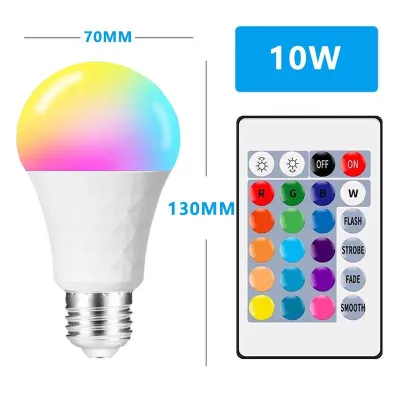
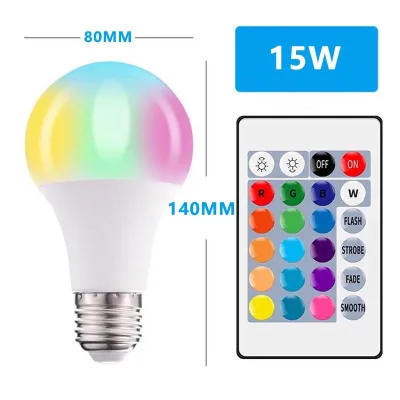
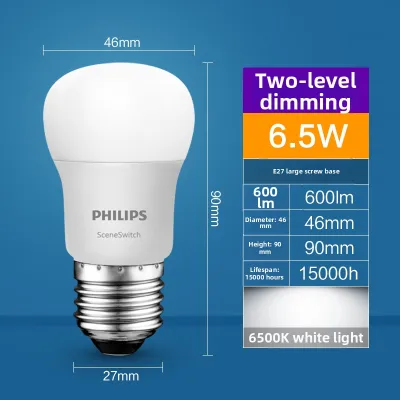
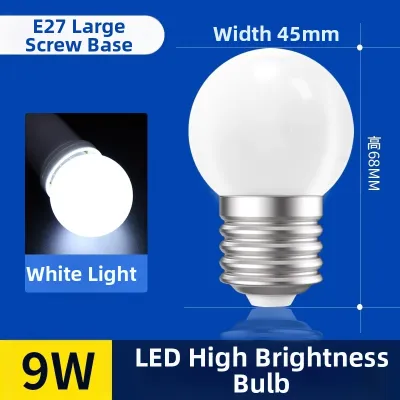
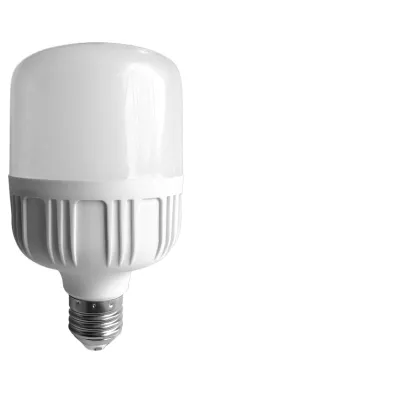
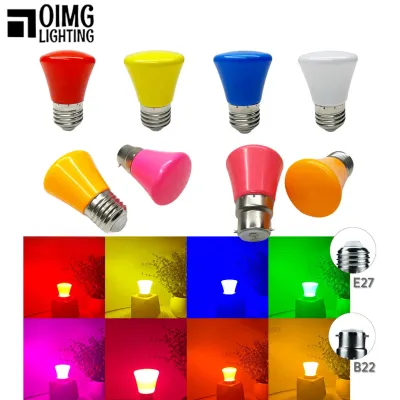
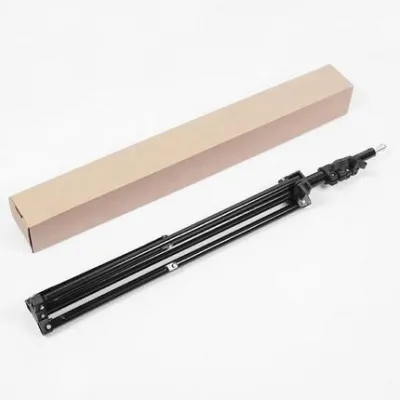
Prices are valid at publication and may change. Please refer to the product page for the latest price.
Positioning your light source is just as important as choosing the right color. Place your lamps or fixtures behind the monitor or off to the sides so that the light bounces off the wall rather than reflecting directly onto your screen. Direct reflections create glare zones that obscure your view and force you to strain your eyes to see in-game details. If you are using a desk lamp, angle the shade away from the display surface to maintain a clean, high-contrast view of your gameplay.
Casual and Story-Driven Play: Building an Immersive Atmosphere
When you transition from competitive matches to casual, story-driven games, your lighting goals shift from maximizing alertness to building deep immersion. Slow-paced exploration games, role-playing adventures, and atmospheric simulators benefit immensely from a relaxed environment. For these sessions, warm and dimmed settings work exceptionally well. Lowering the brightness of your light bulb with different colors to a soft, warm white or amber tone (around 2700K to 3000K) creates a cozy, cinema-like atmosphere that is excellent for long, comfortable gaming sessions.

You can also use static RGB colors to match the dominant palette or theme of the game world you are exploring. For instance, if you are navigating a lush forest in an adventure game, setting your ambient bulbs to a deep forest green can make your physical room feel like an extension of the digital landscape. If you are exploring a sci-fi space station, a cool blue or deep purple hue can enhance the futuristic mood. Keeping these colors static ensures that the lighting remains atmospheric without becoming a constant, flashing distraction.
Many modern smart bulbs support screen-syncing features, which dynamically adjust the bulb’s color and brightness to match the real-time action on your monitor. Before attempting this setup, check the hardware and software requirements of your specific bulb ecosystem. Some systems require a dedicated sync box connected to your HDMI chain, while others rely on desktop applications that capture your screen’s pixels. Ensure your PC or console setup is compatible with these tools, and balance the ambient glow so it remains subtle; overly bright sync effects can wash out the perceived contrast of your display, making dark scenes look gray and muddy.
Streaming and Content Creation: Balancing Key Light and Background
For streamers and content creators, lighting serves a dual purpose: it must illuminate your face clearly for your audience while creating an engaging, professional-looking background. Achieving this balance requires separating your primary key light from your background ambient lights. If you are using a light bulb with different colors as your front-facing or overhead key light, set it to a neutral white mode with a high Color Rendering Index (CRI). A high CRI ensures that your skin tones appear natural and accurate on camera, preventing you from looking washed out or unnaturally tinted.
Your background lighting is where you can let your creativity show. Use color-changing bulbs in floor lamps, light strips, or accent fixtures behind your desk to add depth and visual interest to your camera frame. Keep these background lights at a lower brightness level than your key light. If the background is too bright, it can overexpose your camera sensor, causing your face to appear dark or silhouetted. A subtle, colorful glow behind you creates a pleasing contrast that separates you from the background and makes your stream look more professional.
To maintain a clean look, avoid mixing different color temperatures in your primary light path. For example, if your key light is a cool white, do not let a warm yellow light spill onto your face from a nearby lamp, as this creates awkward, uneven skin tinting that is difficult to correct in your streaming software. Additionally, take the time to adjust your camera’s manual white balance settings. Locking your camera’s white balance to match the exact color temperature of your key light ensures that your background RGB colors pop beautifully without distorting your natural skin tones.
Key Specifications to Check When Buying Gaming Lights
When shopping for a light bulb with different colors to upgrade your gaming setup, it is essential to look past the marketing hype and verify the technical specifications on the product packaging. First, check the color temperature range, which is measured in Kelvin (K). A versatile bulb should offer a wide range, typically from a warm 2700K up to a cool 6500K, alongside a full RGB color gamut. This wide range ensures you can easily transition from a productive daytime workspace to an immersive nighttime gaming hub.
Dimming capabilities are another critical factor to evaluate. Many standard LED bulbs do not dim smoothly, or they may flicker when set to low brightness levels, which can cause eye strain and ruin your gaming atmosphere. Look for smart bulbs that specify smooth, flicker-free dimming down to at least 1% or 5% brightness. This allows you to achieve a suitable low-light ambiance for late-night gaming sessions without any distracting visual noise.
Consider how the bulb integrates into your existing smart home ecosystem. Confirm whether the bulb requires a dedicated hardware hub or if it can connect directly to your home Wi-Fi or Bluetooth network. App-based control and automation are highly convenient for gaming rooms, allowing you to create custom lighting presets for different activities and trigger them with a single tap on your phone or a voice command. Finally, always match the bulb’s base type (such as E27, which is highly common in local fixtures) and physical dimensions to your desk lamps or floor fixtures to ensure a secure fit.
Safety and Installation Checks for Your Gaming Room
Before installing any new lighting hardware in your gaming room, safety should be your top priority. Always check the maximum wattage rating of your lamp or light fixture before screwing in a new bulb. While LED color-changing bulbs generally consume far less power than traditional incandescent bulbs, verifying that the bulb’s wattage falls well within the fixture’s safe operating limits prevents electrical hazards and ensures long-term reliability.
Heat management is another crucial consideration for smart bulbs. Avoid installing smart color-changing bulbs in fully enclosed fixtures unless the manufacturer’s documentation explicitly states they are rated for enclosed spaces. Smart bulbs contain sensitive internal electronics and wireless receivers that generate heat; if this heat cannot dissipate properly in an enclosed dome or globe, the bulb can overheat, leading to premature failure or safety risks. In tropical environments where ambient temperatures and humidity are naturally higher, ensuring adequate ventilation around your light fixtures is even more critical to keep the electronics running cool.
For smart bulbs to function correctly and remain responsive to app commands, the physical wall switch must remain in the “on” position. If you find that family members or roommates constantly turn off the physical switch, consider installing smart switch guards or upgrading to compatible smart switches that maintain constant power to the bulb while still offering physical control. Lastly, always turn off the power at the wall switch or, ideally, the main circuit breaker before physically installing, removing, or cleaning any light bulbs to protect yourself from accidental electrical shocks.
Frequently Asked Questions (FAQ)
Do color-changing bulbs cause input lag or screen glare?
Color-changing bulbs do not have any impact on your PC or console’s input lag, as they operate on entirely separate electrical and wireless networks. Any input lag you experience is related to your display, controller, or system performance. Screen glare, however, is directly caused by improper bulb positioning and excessive brightness. If you see distracting reflections on your monitor, you can easily resolve this by angling your light fixtures away from the screen, placing the bulbs behind your monitor to act as bias lighting, or dimming the bulb’s brightness level until the reflection disappears.
Can I sync my smart bulbs directly to my PC games?
Yes, you can sync your smart bulbs to your PC games, but this feature depends entirely on software compatibility between your bulb’s ecosystem and your computer. Many smart lighting brands offer dedicated desktop applications that capture the colors on your screen and transmit them to your bulbs in real time. Before purchasing, check the manufacturer’s official website to confirm if their software supports your operating system and the specific games you play. Keep in mind that dynamic syncing can sometimes increase CPU usage slightly, so ensure your gaming rig has the headroom to handle the background software during intense gameplay.
Community discussion
Share your experience or ask a question. Comments are reviewed before publication.