
Setting up a comfortable work-from-home (WFH) workspace requires more than just a fast internet connection and an ergonomic chair. If you spend hours in front of a monitor, finding the right lamp for desktop computer setups is essential to prevent eye strain caused by screen glare. The ideal desk lamp must illuminate your physical documents and keyboard without bouncing light directly off your monitor screen or creating harsh contrast zones. To achieve this balance, you should prioritize features like asymmetric light paths, deep shades, physical adjustability, and customizable brightness levels.
Understanding Monitor Glare in a WFH Setup
To choose the right lighting, you must first understand the specific type of glare affecting your screen. Glare generally falls into two categories: reflection glare and contrast glare. Reflection glare occurs when light from an external source—such as an open window, an overhead ceiling fixture, or a poorly positioned lamp—bounces directly off the glass of your monitor and into your eyes. This creates a mirror-like hotspot that washes out text and images, forcing you to squint or lean at awkward angles to read your screen.
Contrast glare, on the other hand, is a matter of relative brightness. When your monitor is the only bright object in a dark room, your eyes must constantly adjust between the intense light of the screen and the deep shadows of the surrounding desk space. This continuous adjustment tires the muscles of your eyes, leading to fatigue and headaches over long working sessions.
Products mentioned in this guide
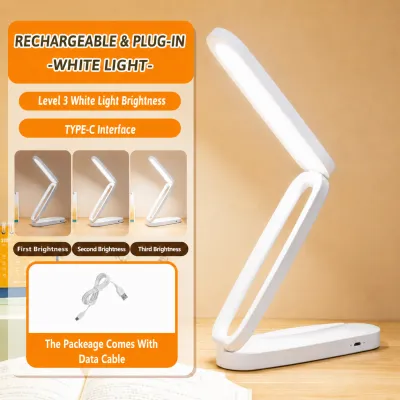
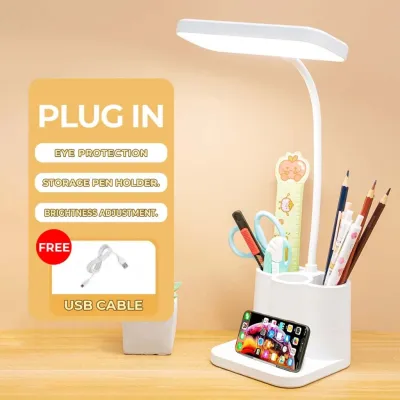
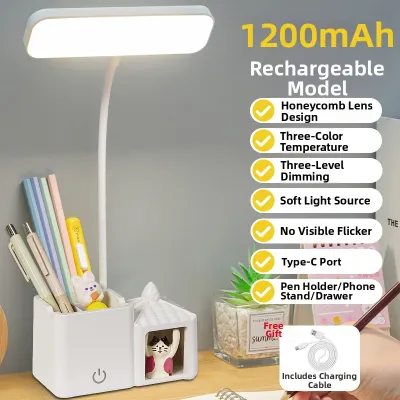
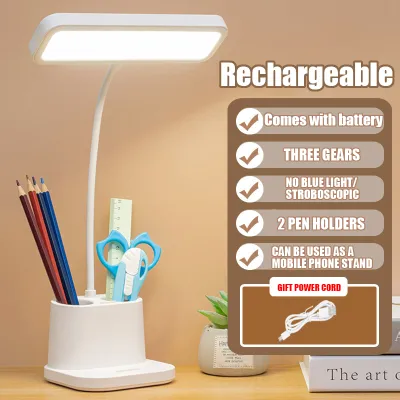
Prices are valid at publication and may change. Please refer to the product page for the latest price.
In a typical home office, environmental factors often worsen these issues. For instance, in tropical climates like the Philippines, bright midday sun streaming through a window can create intense ambient light that easily overpowers standard monitor backlights. Similarly, standard overhead ceiling lights are often positioned directly above or behind your seating area, casting harsh reflections straight onto your display.
You can perform a simple visual check to locate the primary reflection sources on your monitor. Turn off your computer screen so that the display is completely black. Sit in your normal working position and look for any visible shapes, light bulbs, or bright window outlines reflected on the dark glass. Any light source you can see clearly in the reflection is a primary culprit that needs to be shielded, repositioned, or counteracted with a dedicated task lamp.
Essential Lamp Features to Prevent Screen Reflections
When shopping for a lamp for desktop computer use, the physical design of the lamp head is your first line of defense against reflection glare. Traditional lamps often feature shallow shades that allow light to scatter in all directions, including directly onto your monitor. To prevent this, look for lamps with deep shades or recessed light sources. A deep shade physically blocks the light from traveling sideways toward your screen, ensuring the beam angle is restricted and directed downward onto your desk surface.

Another critical feature is the inclusion of a frosted diffuser or anti-glare louvers over the light source. Raw LED chips or exposed bulbs create intense, concentrated points of light that are highly reflective. A frosted diffuser scatters these harsh points into a soft, even glow, minimizing the chance of creating a sharp hotspot on your screen. Louvers or physical grids perform a similar function by mechanically directing the light downward and preventing stray lateral beams from escaping.
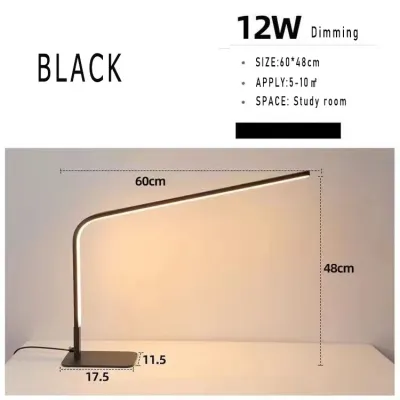
For the most effective glare prevention, consider lamps that feature asymmetric light distribution. Unlike symmetric lamps that cast light in a uniform cone directly beneath the bulb, asymmetric lamps use specialized reflectors or lenses to project light forward and down at an angle. This design allows you to place the lamp near your monitor while directing the entire light output onto your keyboard and writing area, keeping the screen itself completely in the shadow.
Before making a purchase, always verify the product specifications and labels to confirm the light spread matches your desktop layout. Additionally, check the electrical specifications, including voltage compatibility, base or interface type, wattage limits, and electrical safety certifications. Ensuring these technical details align with your home setup prevents electrical hazards and compatibility issues down the road.
Adjustability and Positioning for Desktop Monitors
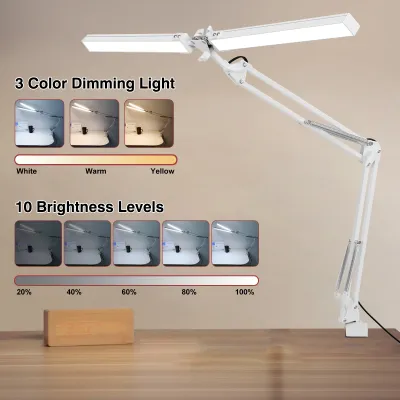
Even the most advanced anti-glare lamp will cause reflections if it is placed in the wrong position. This makes physical adjustability a crucial priority for any WFH setup. When comparing lamp designs, look closely at how the light source can be moved. Flexible goosenecks offer quick, multi-directional adjustments, but they can sometimes lack the reach needed to clear large desktop monitors. Articulating arms with multiple tension joints provide superior control, allowing you to raise, lower, and tilt the lamp head precisely outside the monitor’s reflection zone.
The basic principle of positioning a task lamp is to place the light source to the side of your monitor or slightly behind the plane of the screen. If you are right-handed, placing the lamp on your left side prevents your hand from casting shadows on your paperwork, and vice versa. By keeping the lamp out of the direct line of sight of the screen, you ensure that any light hitting the desk bounces away from your eyes rather than reflecting off the monitor glass.
You must also assess your specific desk space constraints and monitor stand height. If you use a dual-monitor setup or a large ultrawide display, a standard short desk lamp may not provide enough clearance. Ensure the lamp’s arm is long enough to position the light head above or to the side of your screens without blocking your view.
Additionally, pay attention to the mounting style and stability of the lamp. A heavy, weighted base is essential if you plan to use an articulating arm that extends far over a cluttered desk. If desk space is limited, look for models that offer a heavy-duty desk clamp or a grommet mount. These options secure the lamp firmly to the edge of your desk, preventing tipping while freeing up valuable workspace for your keyboard, mouse, and documents.
Brightness and Color Temperature Controls
Managing contrast glare requires precise control over the intensity and color of your workspace lighting. Because natural light changes throughout the day—especially during bright afternoons and rainy, overcast mornings—a fixed-brightness lamp is rarely sufficient. Look for a lamp that features stepless dimming or at least multiple distinct brightness levels. This adjustability allows you to match the lamp’s output to the ambient light of the room and the brightness of your monitor, preventing the extreme contrast that leads to eye fatigue.
Adjustable color temperature is another valuable feature, though its benefits are largely a matter of personal preference and comfort rather than absolute performance. Color temperature is measured in Kelvin (K), with lower numbers representing warm, yellow light and higher numbers representing cool, blue-white light. During the day, setting your lamp to a cooler temperature (around 4000K to 5000K) can help keep you alert and match the natural daylight. In the evening, switching to a warmer tone (around 2700K to 3000K) reduces exposure to blue light and creates a relaxing environment that aligns with your body’s natural sleep prep.
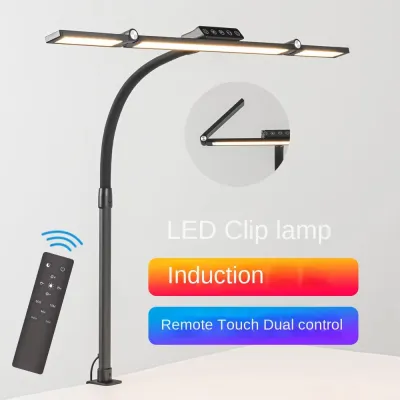
When evaluating these features, check the manufacturer’s control interface to ensure it is easy to use during work hours. Touch-sensitive sliders, physical dials, or remote control pucks allow you to make quick adjustments without disrupting your workflow. Avoid lamps with complicated programming sequences or poorly placed buttons that require you to stand up or reach awkwardly behind the monitor to change settings.
Evaluating Bias Lighting as an Anti-Glare Strategy
While a primary task lamp illuminates your physical workspace, bias lighting is an excellent supplementary strategy to combat contrast glare. Bias lighting involves placing a soft, low-intensity light source directly behind your monitor, illuminating the wall behind the screen. This raises the ambient light level immediately surrounding your display without casting any direct light onto the screen itself.
This strategy is highly effective when you prefer to work in low-light environments or during late-night shifts when turning on bright overhead lights is undesirable. By illuminating the wall behind the monitor, bias lighting reduces the harsh contrast between the bright screen and the dark room, allowing your eyes to remain relaxed.
Before setting up bias lighting, perform a few compatibility checks. Ensure the light strip or bar is securely attached to the back of your monitor and does not block essential ventilation grates or input ports. Additionally, check that the light reflecting off the wall behind your desk does not bounce forward onto glossy monitor screens or create distracting halos.
It is important to remember that bias lighting is a supplement, not a replacement, for a high-quality task lamp. While bias lighting excels at reducing contrast glare and eye strain, it does not provide the focused, downward illumination needed for reading physical documents, writing, or viewing keyboard keys. For a complete, glare-free WFH setup, combine a rear-mounted bias light with an adjustable, asymmetric task lamp.
Frequently Asked Questions (FAQ)
Can I use a standard reading lamp for my desktop computer setup?
Standard reading lamps are generally not ideal for desktop computer setups because they typically feature wide, symmetric beam angles and exposed bulbs. These designs allow light to scatter sideways, hitting your monitor screen directly and causing severe reflection glare. If you must repurpose an existing reading lamp, you will need to make specific modifications. Position the lamp far to the side of your monitor, tilt the shade completely away from the screen, and consider adding a physical shield or using a lower-wattage, frosted bulb to minimize harsh reflections.
Does a matte screen protector eliminate the need for an anti-glare lamp?
While a matte screen protector helps diffuse direct reflections, it does not completely eliminate the need for a proper anti-glare lamp. Matte surfaces scatter incoming light, which reduces sharp mirror-like reflections but can cause a hazy, washed-out effect over the entire screen when hit by a bright, unshielded light source. To maintain optimal contrast, color accuracy, and eye comfort, you must still control the external light sources in your room by using a task lamp designed to direct light away from your display.

Community discussion
Share your experience or ask a question. Comments are reviewed before publication.