
The most critical specifications that determine whether a monitor lightbar will actually reduce eye strain are asymmetric optics, a high Color Rendering Index (CRI), and adjustable color temperature. While standard desk lamps cast light in all directions, a properly engineered lightbar projects light at a precise angle to illuminate your desk workspace without reflecting off your screen. Choosing a model with these exact technical features ensures your eyes do not have to constantly adjust to harsh glare, screen reflections, or poor contrast during long study sessions.
In a typical study or work-from-home setup in the Philippines, managing ambient light can be a challenge. High humidity and tropical heat often mean relying on overhead fans or air conditioning, but lighting is frequently overlooked. Standard fluorescent ceiling lights or poorly positioned lamps often create harsh reflections on glossy or matte screens. This constant glare forces your eyes to work harder to resolve text, leading to fatigue, headaches, and dry eyes by the end of a long night.
A monitor lightbar addresses this specific issue by mounting directly onto your display, saving valuable desk space while casting light exactly where you need it. However, not all lightbars are built the same. To find a model that truly protects your vision rather than adding to the glare, you must look past generic marketing claims and evaluate specific technical details. Understanding how light behaves on your screen and desk is the first step to building a comfortable, strain-free workspace.
Products mentioned in this guide
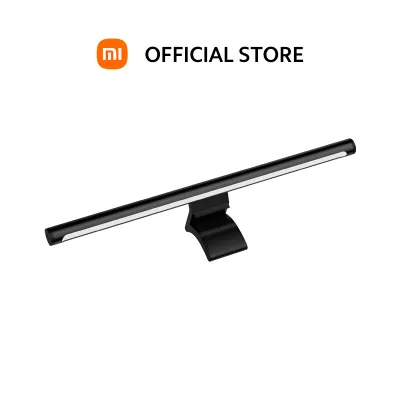
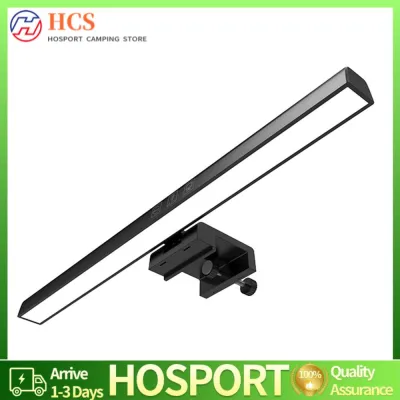
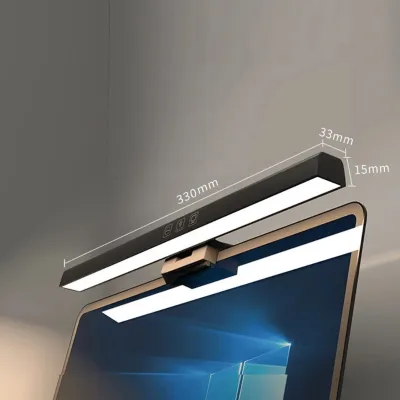
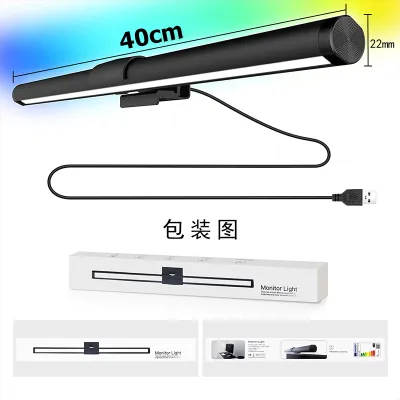
Prices are valid at publication and may change. Please refer to the product page for the latest price.
Decoding Asymmetric Optics: Preventing Screen Glare
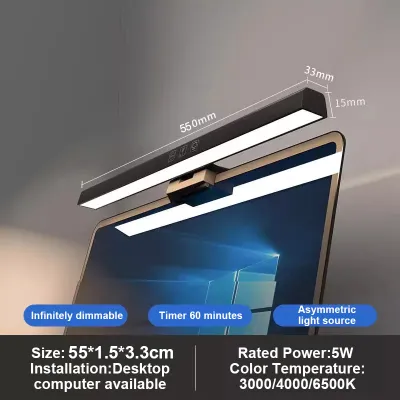
Asymmetric optics represent the most critical engineering feature of a high-quality monitor lightbar. Unlike traditional lamps that distribute light symmetrically in a wide cone, asymmetric lightbars project light at an angle. This design creates a sharp cutoff line, directing the illumination downward and forward onto your keyboard and documents while keeping the light path completely clear of the monitor screen itself.
To verify this feature before purchasing, you should carefully examine the manufacturer’s optical diagrams or product photos. Look for a clear illustration of a triangular light beam that stops abruptly at the plane of the screen. Some product listings on online marketplaces also show physical testing photos where the light path is made visible using smoke or dust, demonstrating a clean, angled beam that does not wash out the display.
If a lightbar uses symmetric or flat optics, the light will inevitably spill onto your screen. This spillover creates a veil of glare that reduces screen contrast, making dark text harder to read against light backgrounds. Your eyes are forced to squint and adjust continuously to overcome this lack of contrast, which is a primary driver of digital eye strain during extended reading and screen work sessions.
CRI and Color Temperature: Choosing the Right Light for Focus
Color Rendering Index (CRI) is a quantitative measure of a light source’s ability to reveal the colors of various objects faithfully in comparison with a natural light source. When studying or working with printed textbooks, colored diagrams, or design materials, a low CRI can make colors look dull, muddy, or indistinguishable. For optimal visual comfort, look for a lightbar with a CRI rating of Ra 90 or higher, which is typically listed on the product packaging or in the technical specifications sheet.

Color temperature, measured in Kelvin (K), directly influences your focus, alertness, and sleep cycle. Cooler light, ranging from 5000K to 6500K, mimics daylight and helps promote alertness and concentration during daytime study sessions. Conversely, warmer light, between 2700K and 3000K, is much gentler on the eyes in the evening, helping you wind down without disrupting your body’s natural preparation for sleep.
Many generic lightbars are marketed with vague buzzwords like “eye-care” or “anti-blue light” without providing concrete technical data. To ensure you are getting a high-quality light source, always check the product manual or official specifications for the actual CRI value and the adjustable Kelvin range. A versatile lightbar should offer multiple color temperature presets or stepless adjustment so you can transition from high-focus daytime work to relaxed evening reading.
Brightness, Dimming, and Physical Fit: Matching Your Desk Setup
The brightness of your lightbar must be balanced with the ambient light in your room to prevent extreme contrast, which is another major cause of eye fatigue. A lightbar that is too bright in a dark room creates a harsh spotlight effect, while one that is too dim forces you to strain to read physical documents. Look for models that offer stepless dimming or a wide range of brightness levels, allowing you to fine-tune the output to match your immediate surroundings.
Control mechanisms play a significant role in how easily you can make these adjustments throughout the day. Touch-sensitive controls built directly into the lightbar are common and keep your desk completely clear, though they can sometimes cause the bar to shift if pressed too hard. Physical dials or wireless remote controllers sit on your desk, offering convenient, tactile adjustments without the risk of moving the lightbar, though they do occupy a small amount of physical space.
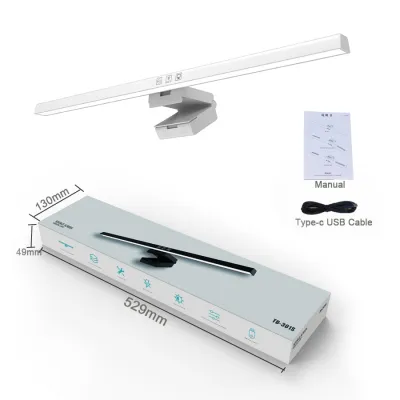
Physical dimensions and mounting compatibility are equally important for a seamless setup. You must check the overall length of the lightbar relative to your monitor size; a bar that is too short may not provide adequate coverage for a wide desk, while one that is too long might overhang excessively. Additionally, ensure the mounting clip or counterweight mechanism is designed to sit securely on your monitor’s top bezel without blocking built-in webcams, microphones, or ambient light sensors.
Verifying Monitor Compatibility and Electrical Safety
Before finalizing your purchase, it is essential to verify your monitor’s physical profile against the lightbar’s mounting specifications. Curved monitors, ultra-thin displays, and monitors with highly angled back panels require specific clamp designs or specialized adapters to sit securely. A poorly fitting mount can slip, scratch the screen casing, or put dangerous pressure on the delicate LCD panel, potentially causing permanent hardware damage.
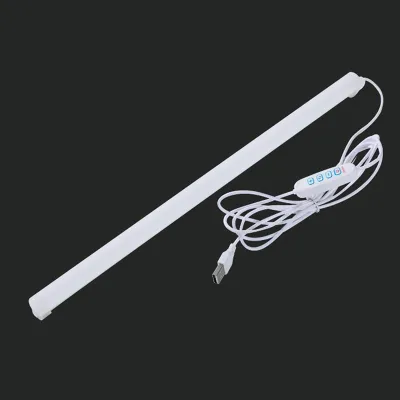
Electrical safety and power stability are also vital considerations for any desktop accessory. Most monitor lightbars are powered via a USB connection, but you must check the required voltage and amperage (typically 5V and 1A or 2A) in the product manual. While plugging the lightbar directly into a monitor’s built-in USB port is convenient, some monitor ports do not supply sufficient or stable power, which can lead to flickering, dimming, or automatic shutoffs. Using a dedicated wall adapter or a certified power strip is often the safest way to ensure consistent performance.
If you encounter any instability during installation, or if the mounting clamp feels like it is pinching the screen too tightly, stop immediately. Do not force a clamp onto a bezel that is too thick or a screen back that is too curved. In these cases, consult the manufacturer’s guide or reach out to their customer support to verify if an adapter is available, or look for an alternative mounting solution to protect your valuable display.
Frequently Asked Questions (FAQ)
Can I use a regular desk lamp instead of a monitor lightbar?
A traditional desk lamp typically distributes light symmetrically, which often projects light directly onto your monitor screen and creates distracting reflections and glare. Additionally, standard desk lamps require dedicated desk space, which can clutter your study area. A monitor lightbar is specifically engineered to mount on top of your display and project light at an angle that avoids the screen entirely, saving desk space while providing targeted illumination for your workspace. While a highly adjustable desk lamp with a deep shade can be positioned to minimize glare, a lightbar offers a much more compact and reliable solution for screen-based work.
Does a monitor lightbar provide enough light for reading physical books?
A monitor lightbar is designed to illuminate the immediate desk area directly in front of your monitor, which is perfect for keyboards, notebooks, and documents placed close to the screen. However, its light distribution is concentrated and may not reach the outer edges of a large desk. If you frequently read large textbooks or reference materials placed far to the side of your monitor, you should check the manufacturer’s lux coverage map to see how far the light extends. For extensive offline reading away from the screen, you may need to supplement your setup with a secondary light source.
Community discussion
Share your experience or ask a question. Comments are reviewed before publication.